Connect a DJI controller
All guides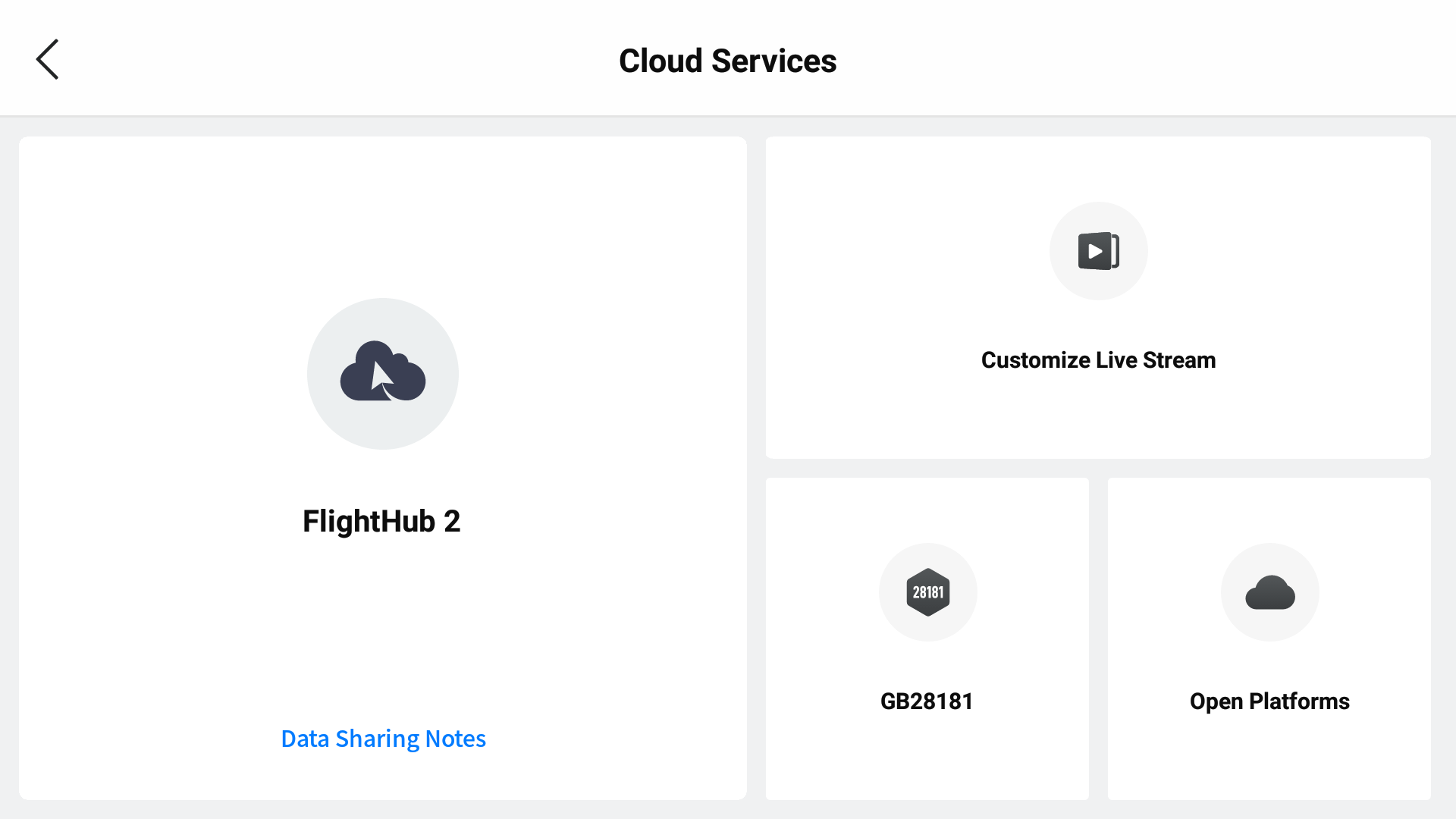
Connect a DJI controller
Set up Flight Sync on a DJI Pilot 2 controller so flights stream into the dashboard automatically — no manual entry, no SD-card uploads. DJI is the first supported provider; the same flow will cover others as they are added.
~2 minutes. Pairing is done once per controller.
Before you start
- Compatible drone
- M300 RTK, M350 RTK, M400, M30 series, M3E / M3T, M4E, M4T
- DJI Pilot 2 on the controller
- Comes pre-installed on enterprise RCs (RC Plus, RC Plus 2). Not DJI Fly.
- FlybyOps account
- Signing-in user must be a workspace owner (root role).
- Internet on the controller
- Wi-Fi or 4G hotspot during pairing. Not needed during flight.
Step 1
Open the Cloud Service menu
On the controller, swipe down or tap Cloud Service from the Pilot 2 main screen, then tap Open Platforms.
DJI Pilot 2 main screen showing the Cloud Service section with the Open Platforms entry
Step 2
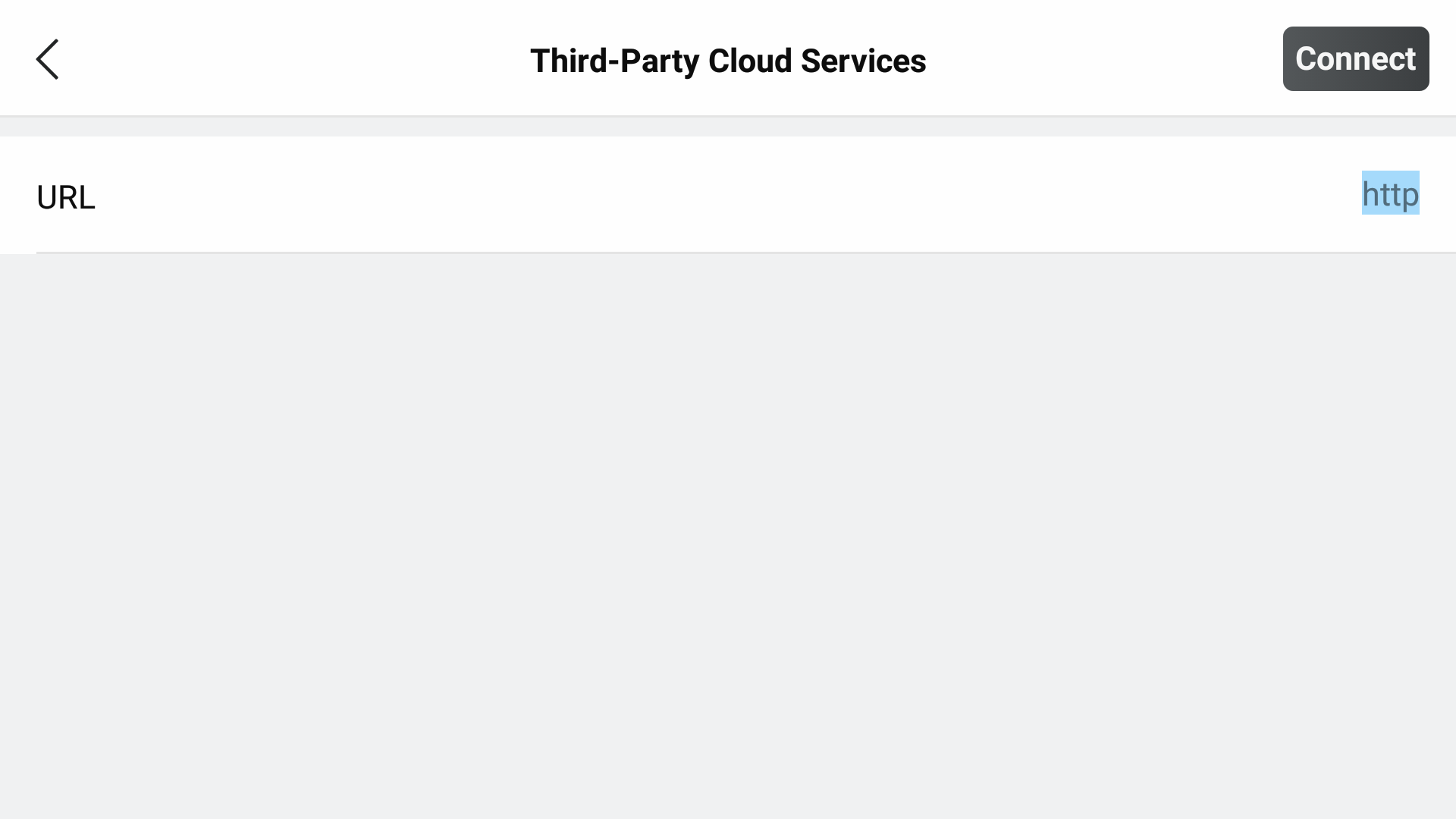
Enter the FlybyOps URL
In the URL field, type or paste:
https://app.flybyops.com/connect/dji
Tap Connect (or the equivalent confirm button). The FlybyOps pairing page loads inside Pilot 2's browser.
DJI Pilot 2 Open Platforms screen with the field for entering a third-party platform URL
Step 3
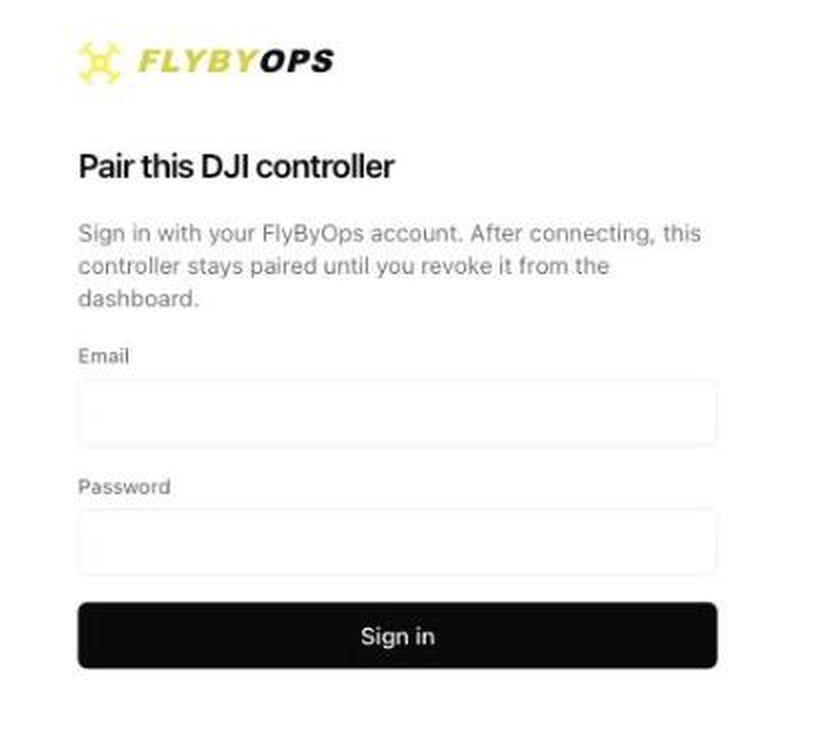
Sign in
Sign in with your normal FlybyOps email and password — the same credentials you use on the dashboard.
- If you belong to one workspace, you'll go straight to the connect screen.
- If you belong to multiple, pick the workspace this controller should report flights to.
FlybyOps sign-in form rendered inside Pilot 2
Step 4
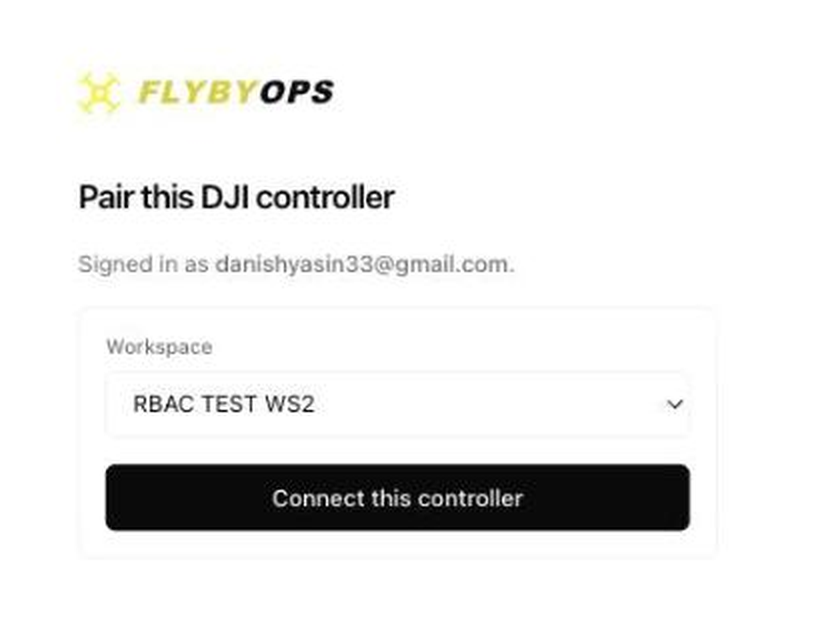
Connect the controller
Tap Connect this controller. The page walks through a few verification steps and finishes with a green checkmark — the controller is paired and flights will start arriving in the dashboard.
Connected ✓ confirmation screen
What happens next
- Drone takes off
- A new flight appears in the dashboard's Flights tab, marked in-progress.
- OSD telemetry streams during flight
- Position samples accumulate every 5 seconds — used for the map view and auto-link to the matching project.
- Drone lands
- Flight is finalized with takeoff time, landing time, duration, max altitude, and distance.
- Workspace has project areas drawn
- Flight is auto-linked to the project whose area the takeoff point falls inside.
If a flight's takeoff point isn't inside any project area, it shows in the Needs review queue on the flights index so a manager can attach it manually.
Troubleshooting
| What you see | What to do |
|---|---|
| "DJI Pilot 2 not detected" | You opened the URL in a regular browser. Open it through Pilot 2's Cloud Service → Open Platforms instead. |
| "Only workspace root users can pair new devices" | Your account doesn't have owner permissions in the workspace. Ask a workspace admin to sign in on the controller, or have them upgrade your role. |
| Stuck on "Verifying DJI license…" | Controller has no internet. Confirm Wi-Fi / cellular and retry. |
| "Connect didn't complete within 20s" | MQTT broker can't be reached. Check the controller's internet, then tap Connect again. |
| "app not verify, please verify first" | Pair the same controller again — usually transient. If it persists, contact support. |
| Flights don't appear after pairing | Check Flights → Needs review — auto-link may have skipped because no project area covers the takeoff point. |
Staying connected
Pairing is stored on the controller and does not need repeating. The connection is a separate thing: flights are only recorded while the controller is connected to FlybyOps.
If the controller has been disconnected from third-party cloud services in Pilot 2 — by exiting the platform, or after the aircraft and controller have been powered down — reopen FlybyOps from Cloud Service → Open Platforms and connect again before flying. You are not re-pairing; the controller already knows this workspace.
If a flight does not show up in the dashboard, this is the first thing to check.
Re-pairing
To pair the same controller to a different workspace, repeat Steps 1–4. The previous binding is replaced automatically.
DJI's own documentation
Everything you need is above — this is background reading for anyone who wants to understand what the controller is doing. FlybyOps connects through DJI's Cloud API. DJI documents the controller side of it in Pilot access to Third-party Platform — its “Configure Third Cloud” section is the Cloud Service → Open Platforms flow from Steps 1–2, and the screenshots above come from it.
Support
If pairing fails after retrying, screenshot the controller's screen (including the debug log at the bottom of the FlybyOps page) and send it to support@flybyops.com. The debug log has everything we need to diagnose remotely.